 Eagerly
 Eagerly Earn
How Eagerly Earn works
Everything from the first screen to a kid's first round: what each device needs, how to set it up, and what you can change from your own iPhone.
First, whose device is it?
The first time Eagerly Earn opens, it asks: Who uses this device? Your answer sets what the app does there.
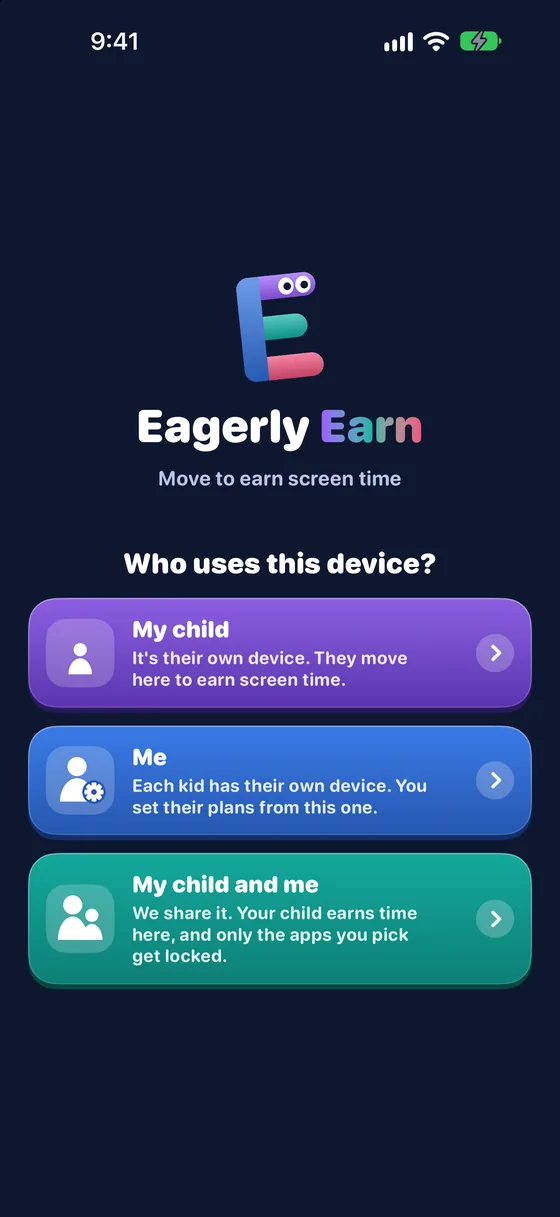
- My childYour child's iPhone or iPad. Apps lock here, and your child earns time with exercises in front of the camera. Grown-up settings sit behind a PIN or Face ID.
- MeYour own iPhone. Nothing is locked on it. It's your remote: you see every connected kid and set each one's rules from anywhere.
- My child and meOne iPhone or iPad that a grown-up and a kid share. Only the apps you pick are locked, so your other apps stay open, and you set the rules in Grown-ups on the same device. If your other kids have their own devices, manage them from here too, in Grown-ups, then Kids' devices.
What each device needs
Apple only lets an app lock other apps on a child's device that a parent approves. That's why the kid's device has a few requirements.
- Your child's iPhone or iPadiOS 17 or later and a working camera. Signed in to iCloud with your child's own Apple Account, the child account in your Family Sharing group, with iCloud turned on.
- Your iPhoneiOS 17 or later, signed in to iCloud with your own Apple Account, iCloud turned on. No Screen Time setup and no camera needed. You don't have to be the family organizer: any parent or guardian in the family can connect.
- Approving Screen TimeOn the kid's device, a parent or guardian from your Family Sharing group types their own Apple Account password once. Not your child's password.
- A shared device (My child and me)iOS 17 or later, a camera and iCloud on. No child Apple Account is needed: you approve Screen Time with the device's own Face ID or passcode.
- No account with usThere's no Eagerly Earn sign-up. Your settings and your child's progress stay on your devices and in your family's own iCloud, and app updates keep everything set up.
Start the free trial
Eagerly Earn turns on with a plan. A grown-up starts it once, on their own device, and it covers the whole family.
- On your device firstRight after Who uses this device?, your device shows the plans. Tap Start free trial for 7 days free on the yearly plan, or pick monthly. You pay with your Apple Account.
- Your kids never payYour plan reaches every kid in your Family Sharing group, on every device. Connecting a kid's device to yours turns their plan on too.
- Until there's a planA kid's device says Ask a grown-up to turn on Eagerly Earn. It only offers Connect to a grown-up's device and I'm a grown-up, and it turns on by itself once your plan is active.
- New or reinstalled deviceTap Restore purchases on the plans screen to bring your plan back.
Set up your child's device
About three minutes, once per kid. Do it with the device in your hands.
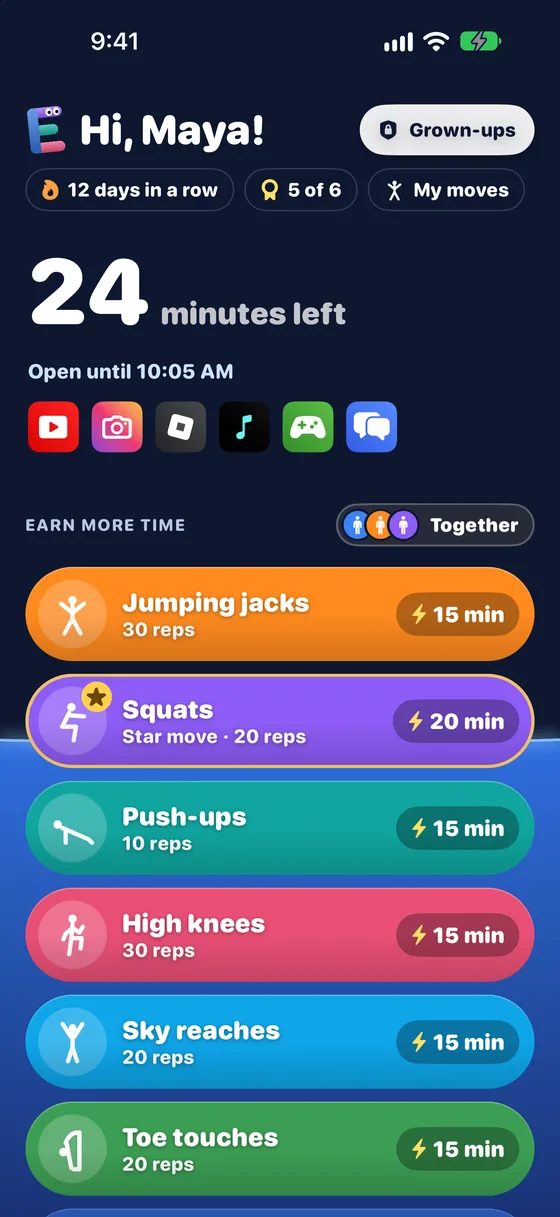
- Install and choose My childDownload Eagerly Earn from the App Store on your child's device and pick My child on the first screen.
- Approve Screen TimeTap Set up. Apple shows its own sheet: enter your Apple Account password (not your child's). This is what lets Eagerly Earn lock apps.
- Pick the apps to lockApple's picker opens. Choose apps, whole categories like Games or Social, and websites. This can only be done on the kid's device.
- Set a grown-up PINPick a 4-digit PIN for the Grown-ups area. You can add Face ID later in PIN and Face ID.
- Connect your iPhone nextLimits, locked times, ways to earn and language are set from your iPhone, not on the kid's device. The next section shows how to connect.
Connect your iPhone
Needed for a kid's own device, because all the rules are set from your iPhone. Do it once for each kid's device.
- Show the code on the kid's deviceOpen Grown-ups, then Family and devices. The scan code is right there.
- Scan it with your iPhoneInstall Eagerly Earn on your iPhone and pick Me. Tap Scan the code (or +) and point it at the code. The iPhone's Camera app works too. On a My child and me device, scan from Grown-ups, then Kids' devices.
- Name your kidRight after scanning, your iPhone asks What's your child's name? Until you answer, the kid's home screen just says Hi! It all works over the internet, so the devices don't need to be on the same Wi-Fi, and no phone number or Messages is needed.
- You're connectedThe kid's device shows a green check, Connected to a grown-up's device, and your iPhone by name. In your list of kids, fill in Your name so your kids know who's who. Repeat for each kid's device.
- One grown-up's iPhone per kid deviceEach kid's device connects to one grown-up's iPhone. To move it to another, open Grown-ups, then Family and devices on the kid's device, tap Switch to a different grown-up's device and scan the new code.
What you control from your iPhone
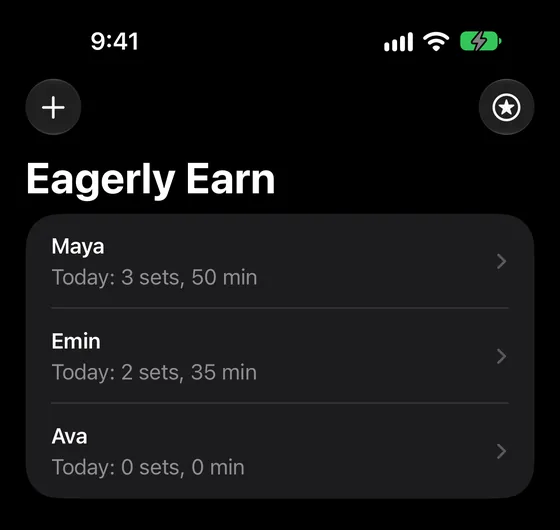
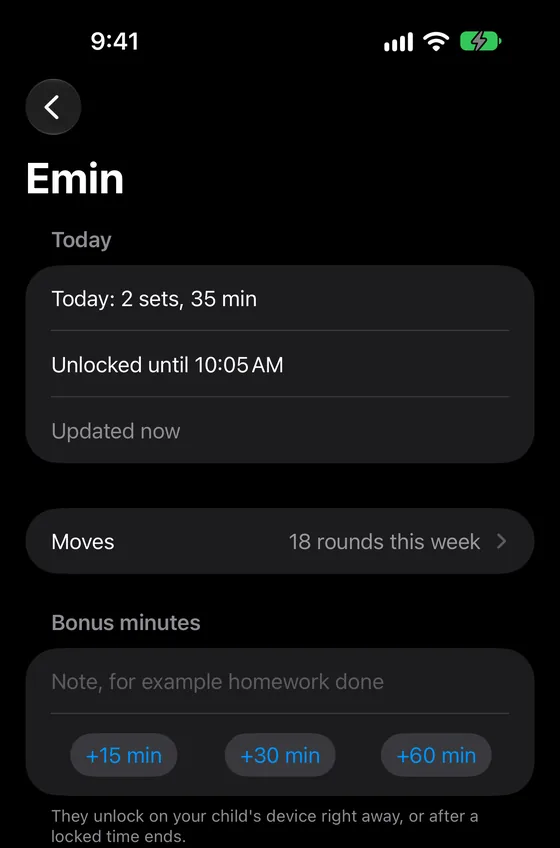
Every kid has their own plan. A 5-year-old and a 13-year-old don't need the same reps, so nothing is copied between kids. Tap a kid in your list to change the things below. There's no Save button: each change saves itself and shows Sent to (your kid)'s device.
- LimitsThe most time a kid can have on the clock, and how many times a day the clock can refill: once, twice, three times, or no limit.
- Locked timesTimes when apps stay locked, like school hours or bedtime. Apps lock exactly at the time you set. Until then your child can keep earning and using time, and minutes that don't fit before the lock stay saved for later.
- Ways to earnWhich moves are on, how many reps each takes and how many minutes it's worth (15 to 60). No jumping hides jumping jacks and high knees for quiet homes.
- How picky the counting isFrom Any try to Easy, Normal and Full moves, so the youngest can earn with a good try and teens do the real thing.
- Coach voice and rep bellTurn the spoken counts and the rep bell on or off.
- NameWhat the app calls your kid; their home screen greets them by name. On a kid's own device the name is set only from your iPhone.
- LanguageOne setting for both devices: change it here or with the language button on your kid's home screen, and the newest change wins. Turn off Kids can change the language to hide that button.
- Bonus minutesSend +15, +30 or +60 minutes, with a note if you like. They unlock right away, or after a locked time ends.
- A new PINForgot the PIN on your kid's device? Tap Set a new PIN, type it twice and tap Send. It works the next time Eagerly Earn opens there.
- Today and the last 7 daysRounds done, minutes earned and when apps are unlocked until.
What only the kid's device can do
On a kid's own device, Grown-ups keeps only Locked apps, Family and devices, the PIN, and Plan and about. Everything else is set from your iPhone. These stay on the kid's device because Apple requires it:
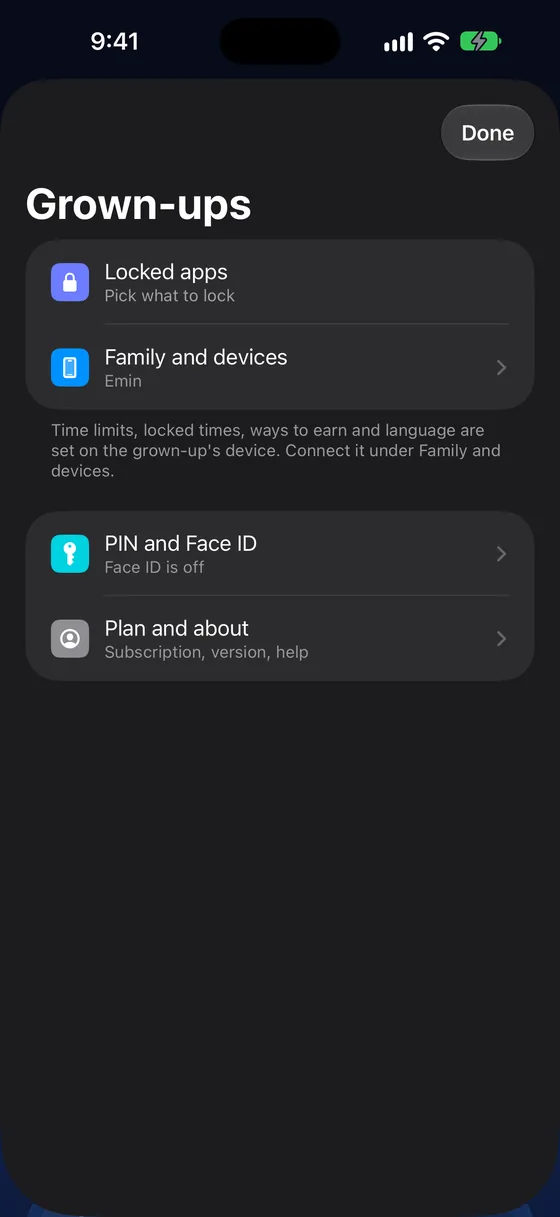
- Screen Time approvalApproving Eagerly Earn, and turning it off, happens on the kid's device with your Apple Account password.
- Choosing the locked appsApple's app picker only works on the device where the apps are locked. Change them in Grown-ups, then Locked apps.
Why your child can't switch it off
On your child's own device, Apple's Screen Time controls keep Eagerly Earn in place.
- Deleting the appApple asks for a parent's Apple Account password before Eagerly Earn can be deleted. Your child's own password doesn't work.
- Turning it off in SettingsSwitching off Eagerly Earn's Screen Time access in Settings asks for the same parent password.
- Grown-up settingsGrown-ups on the kid's device needs your PIN or Face ID, and the rules themselves are set only from your iPhone.
- On a shared deviceWith My child and me the device is yours, so Apple doesn't add this lock. Your passcode, Face ID and the app's PIN protect it, and you can remove the app any time.
How your child earns time
No Start button and nothing to remember: minutes go straight into the clock.
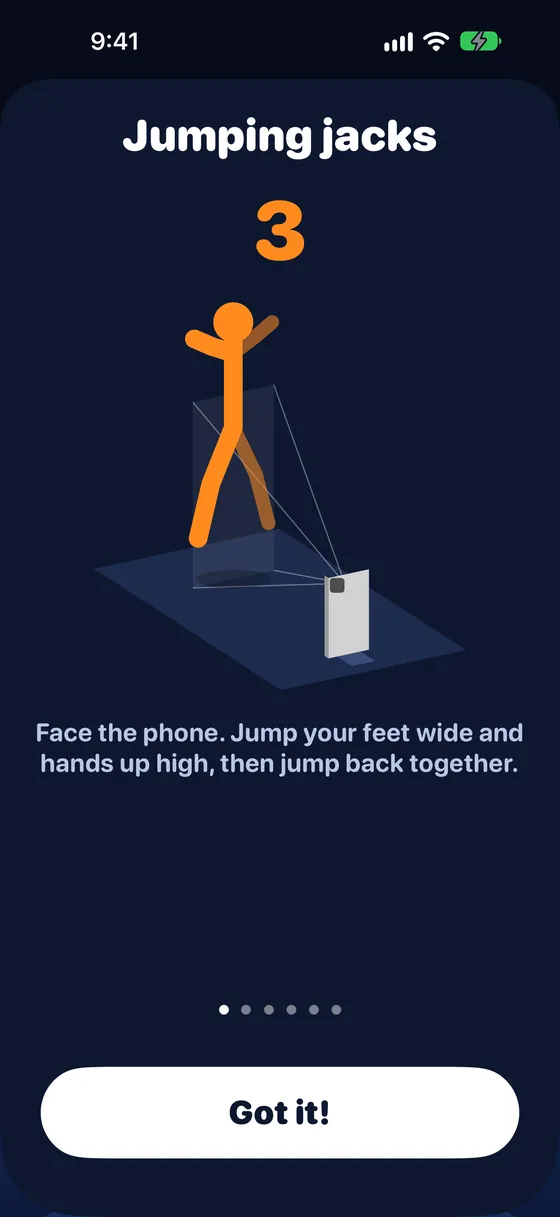
- Do a roundYour child taps a move and does the reps. The camera counts them on the device; nothing is recorded or sent.
- Apps openWhen the last rep counts, the minutes are added. Locked apps open once there are at least 15 minutes.
- Tapping a locked appThe lock screen shows Earn time. On iOS 26.5 and later it opens Eagerly Earn straight away. On older iOS a notification appears; tapping Open Eagerly Earn goes there.
- TogetherUp to three kids can do a round at once, each with their own ring, for 5 bonus minutes. Push-ups are hidden in team rounds.
- After the limit or during a locked timeMoves stay open. Rounds count for the streak, badges and My moves, but add no minutes. A banner tells your child when a lock ends.
If something doesn't work
- Screen Time access says it can't be approved.Check that the device is signed in with a child Apple Account in your Family Sharing group, and that you approve with the organizer's or a parent's Apple Account. Then tap Try again.
- Where should the phone go?Stand it up at about waist height, a few steps away, so the whole body is in view. For push-ups, lean it upright on the floor in front of your child's head. Each move's How to do it demo shows where.
- It isn't counting reps.Make sure the whole body is in the picture (the band says Step back if not), the room is well lit, and nothing bright is behind your child. You can also make the counter less picky in Ways to earn.
- I forgot the PIN.Tap Forgot PIN? on the PIN screen. If your iPhone is connected, you can set a new PIN from it. Otherwise, turn off Eagerly Earn in Settings, Screen Time on your child's device (this needs your Apple Account), approve it again in the app, and pick a new PIN.
- Connecting my iPhone doesn't work.Check that both devices are signed in to iCloud with iCloud turned on, and that your child's Apple Account is in your Family Sharing group. Scan the code shown under Family and devices on your child's device. If scanning doesn't work, use Other ways to share (AirDrop, copy link). Any parent or guardian in the family can connect; you don't need to be the organizer.
- Reinstalled Eagerly Earn on your iPhone?Pick Me again, and your kids come back with all their stats and rules. There's no need to scan again.
- Reinstalled Eagerly Earn on your child's device?Pick My child again. It's the same child, with their connection to your iPhone, rules, name, PIN, rounds, streak and badges. Apple asks you to approve Screen Time again with your Apple Account password, and you pick the locked apps again.
- My child's device still says Ask a grown-up.Check that your child's Apple Account is in your Family Sharing group (Settings, your name, Family), that Share With Family is on for Eagerly Earn (Settings, your name, Subscriptions), and that Purchase Sharing is on (Settings, your name, Family). Connecting their device to yours also turns their plan on. Then tap Check again on your child's device.
When the subscription ends
Earning pauses and the locked apps open again. Streaks, badges and settings are kept. Renew any time in Grown-ups, then Plan and about.